
Stripe can offer your customers more ways to pay than a credit card. Each payment method has to be turned on in your Stripe Dashboard before it shows up at checkout.
Open Your Payment Method Settings
In SiteManager, go to Settings > E-Commerce Settings > Payments and click Open Stripe Dashboard.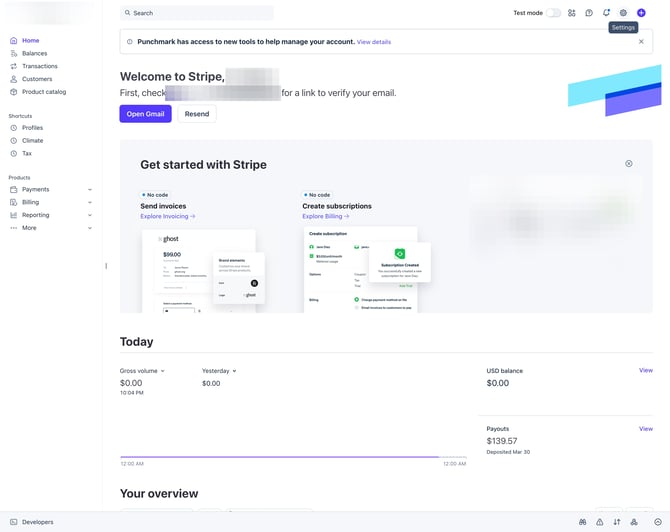
Click the Settings gear at the top right.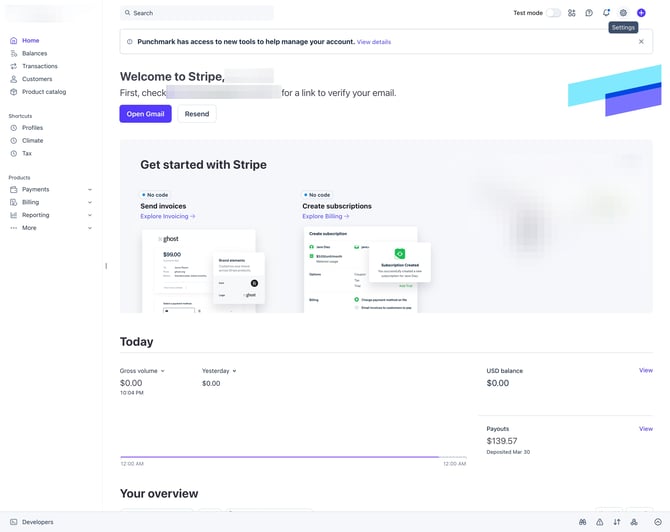
Click Payments.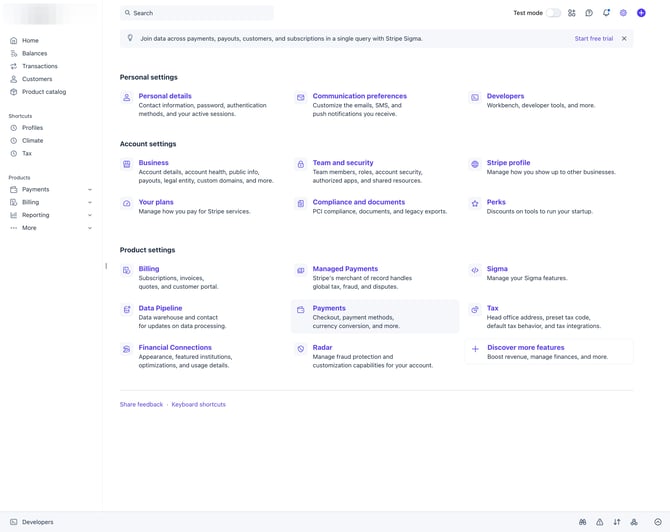
Click Payment methods.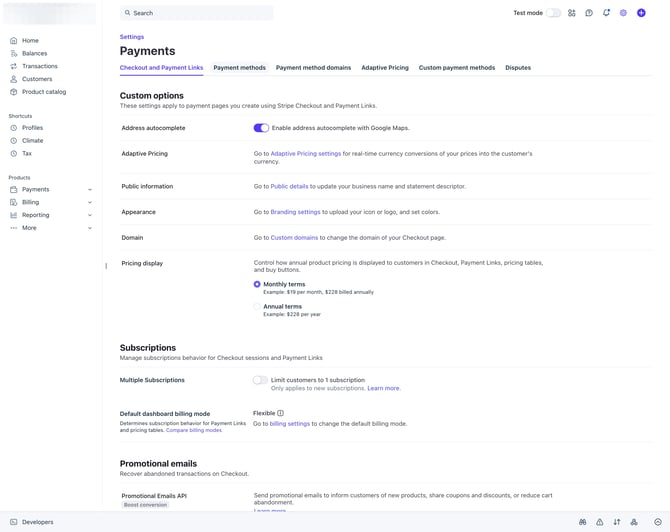
Click Punchmark account.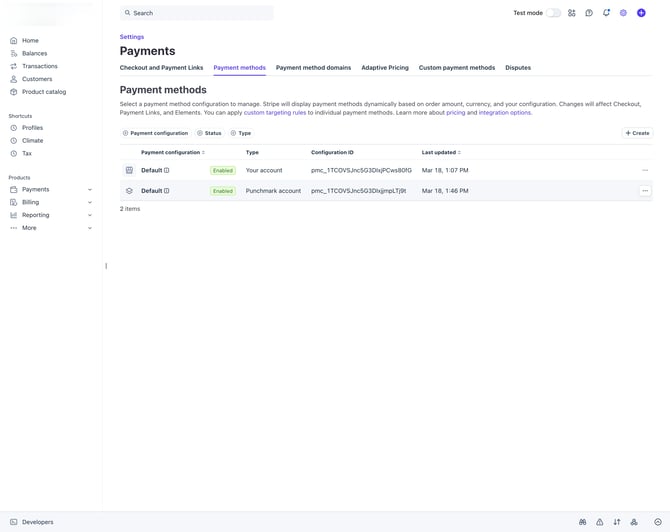
Show US Payment Methods
Click the Popular in filter.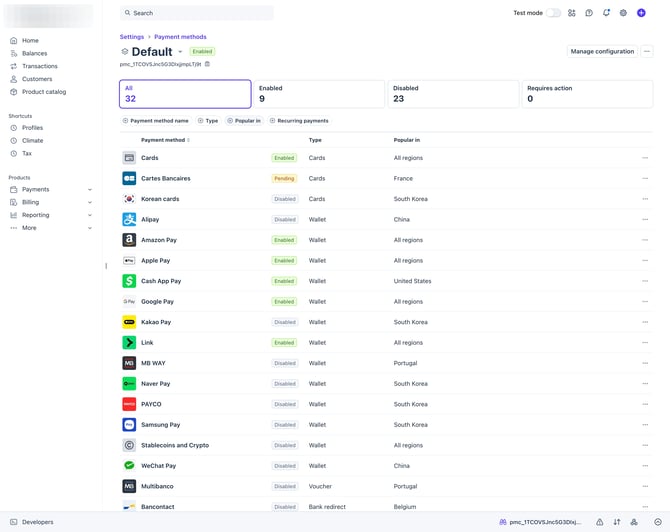
Click the search field and type United States.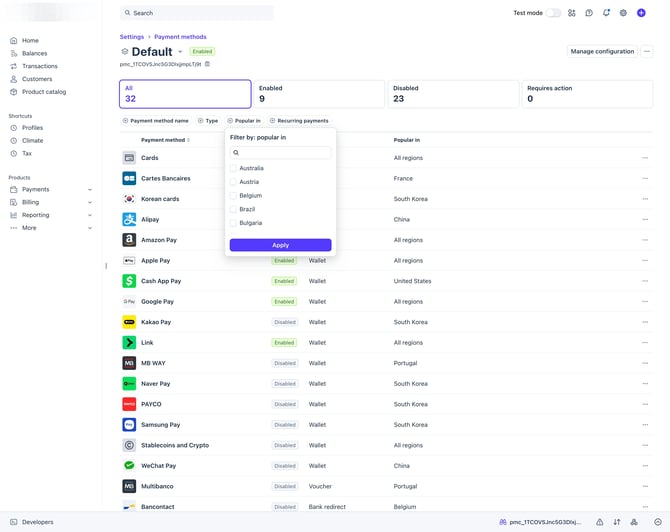
Select United States in the list.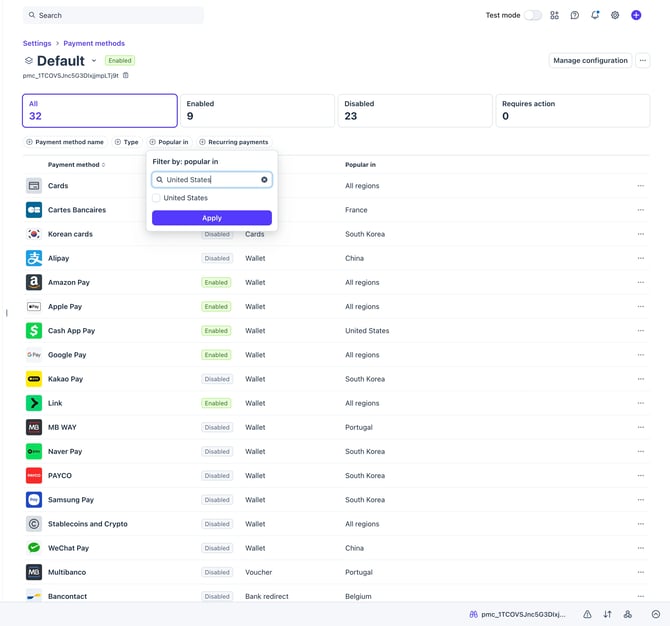
Click Apply. You'll now see the payment methods that are popular with US shoppers.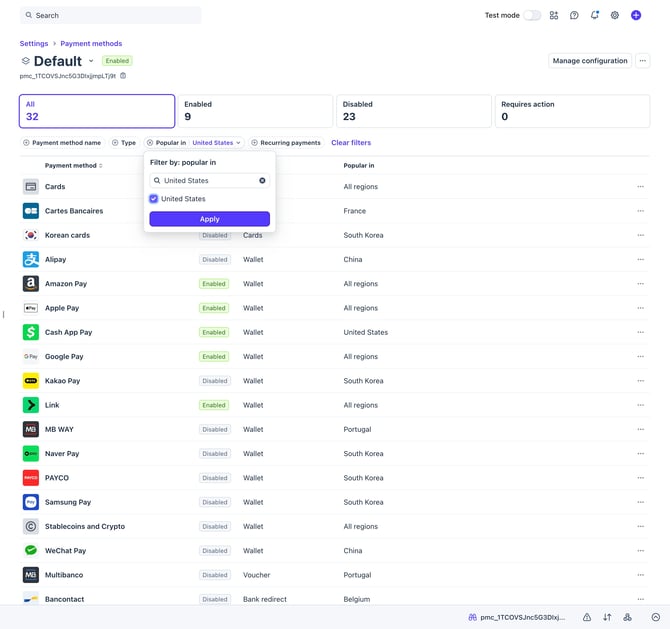
Turn On a Payment Method
Click Enable next to each payment method you'd like to offer.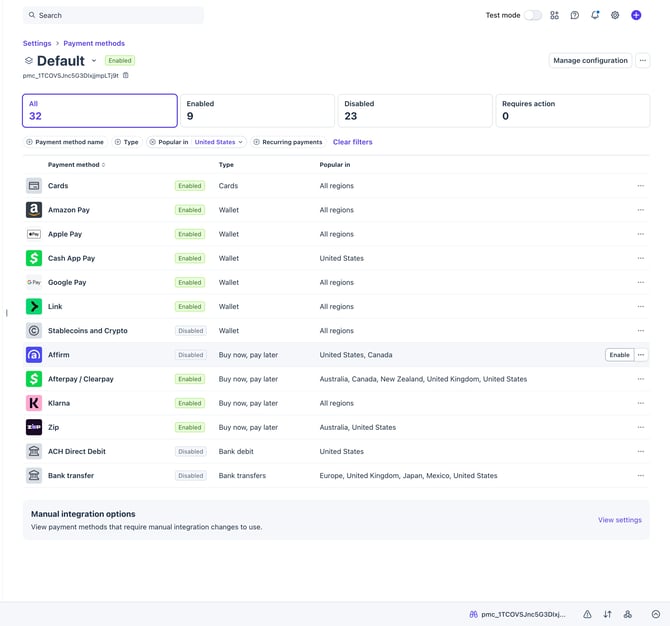
Apple Pay needs one extra step to verify your website's domain. Follow How to Enable Apple Pay to finish setting it up.
After you turn on a new payment method, place a small test order to make sure it shows up at checkout.