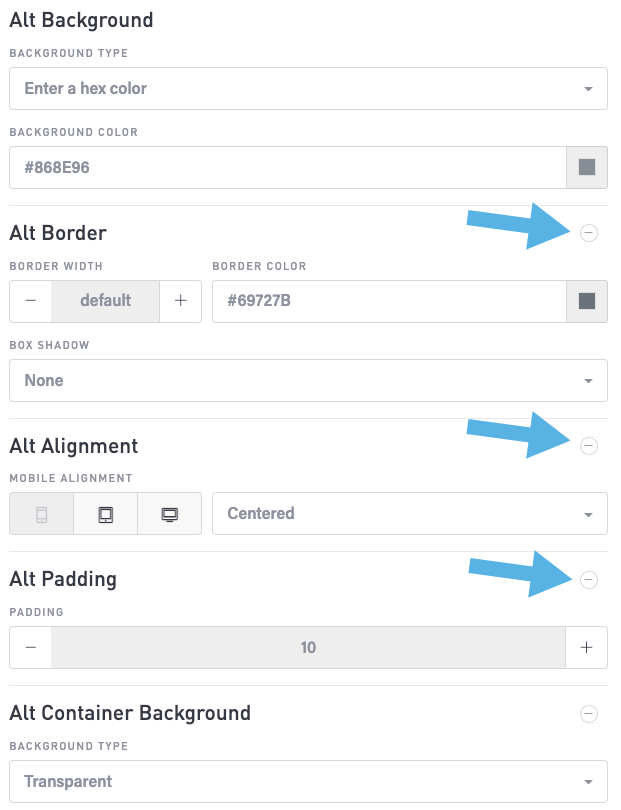
Use the Sections page to edit the settings for the different types of content sections across your entire website. There are several groups of settings:
Remember to click the Save button to commit your changes. Click the Reset button to return to the default settings.
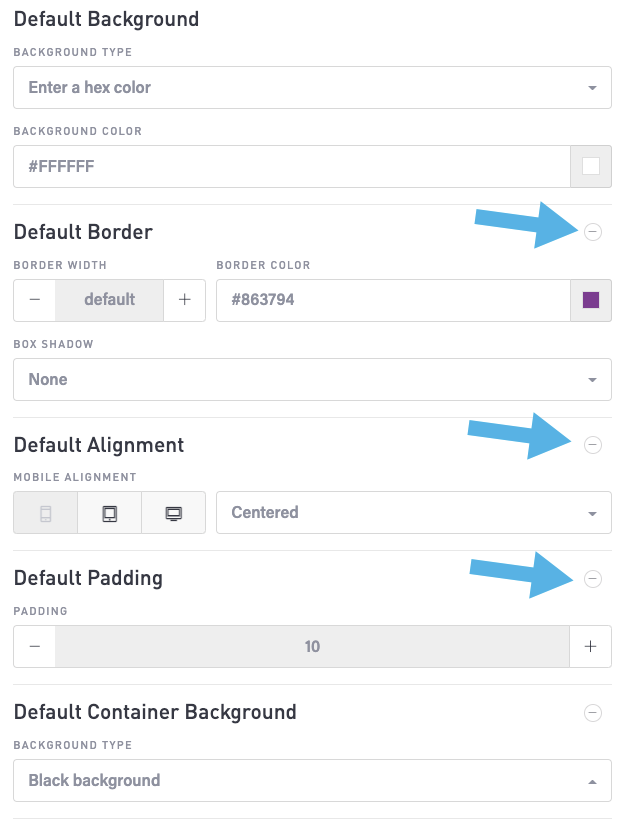
Section Block: “Default”
These are the settings for the inset block,
Default Background
Background type: Select the drop-down and choose a light, dark, or other type of background.
Background color: Select the drop-down and then use the color picker to choose a specific background color. You can also enter the hex color code into this field.
Default Border
Border Width: Use the - and + buttons to adjust the width of the button border.
Border Color: Select the drop-down and then use the color picker to choose a specific color for this block. You can also enter the hex color code into this field.
Box shadow: Choose the type of shadow for this block.
Default Alignment
Click on a screen type. Then, choose the alignment for that screen type from the drop-down.
Default Padding
Use the - and + to specify the width of the padding for this block.
Default Container Background
From the drop-down, choose the type of background for this block.
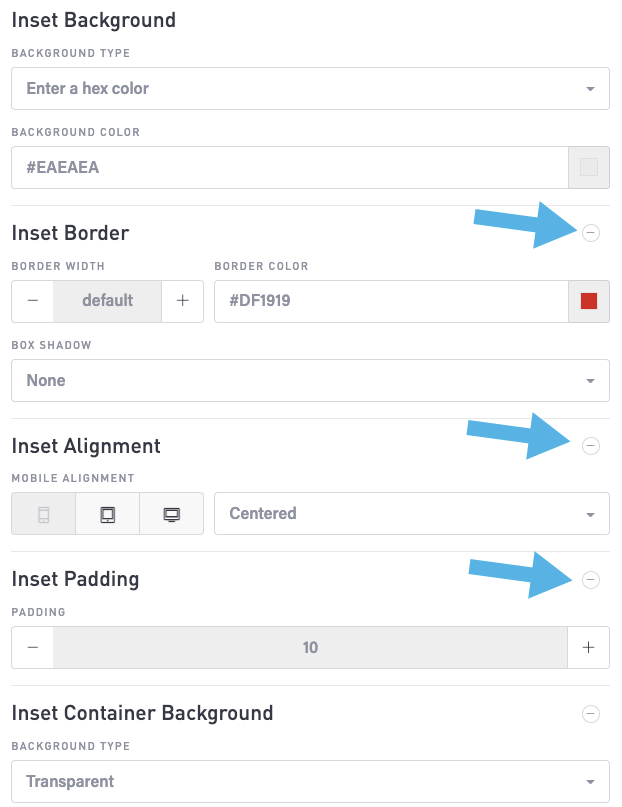
Section Block: “Inset”
These are the settings for the inset block,
Inset Background
Background type: Select the drop-down and choose a light, dark, or other type of background.
Background color: Select the drop-down and then use the color picker to choose a specific background color. You can also enter the hex color code into this field.
Inset Border
Border Width: Use the - and + buttons to adjust the width of the button border.
Border Color: Select the drop-down and then use the color picker to choose a specific color for this block. You can also enter the hex color code into this field.
Box shadow: Choose the type of shadow for this block.
Inset Alignment
Click on a screen type. Then, choose the alignment for that screen type from the drop-down.
Inset Padding
Use the - and + to specify the width of the padding for this block.
Inset Container Background
From the drop-down, choose the type of background for this block.
Section block: “Alt”
These are the settings for the alt block,
Alt background
Background type: Select the drop-down and choose a light, dark, or other type of background.
Background color: Select the drop-down and then use the color picker to choose a specific background color. You can also enter the hex color code into this field.
Alt border
Border Width: Use the - and + buttons to adjust the width of the button border.
Border Color: Select the drop-down and then use the color picker to choose a specific color for this block. You can also enter the hex color code into this field.
Box shadow: Choose the type of shadow for this block.
Alt Alignment
Click on a screen type. Then, choose the alignment for that screen type from the drop-down.
Alt Padding
Use the - and + to specify the width of the padding for this block.
Alt Container Background
From the drop-down, choose the type of background for this block.