
How to Enable Apple Pay
Enable Apple Pay (optional)
Start from Settings -> Payments after you have completed in the Stripe Onboarding Article.
Next select Payment Methods tab at the top
Choose the first "default" payment method and click its name
Scroll down and select Apple Pay
On the slide-out to the right, select Configure Domains
Select "Add Domain" and enter your domain name
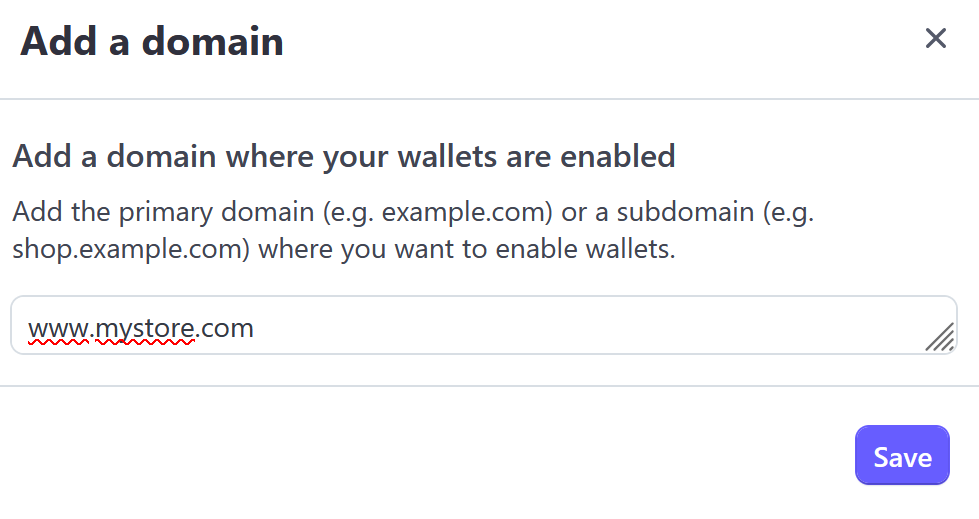
Close that tab, which should bring you back to the payment methods page with Apple Pay selected. On a sandbox site, Apple Pay will now be enabled. On a live site, you may now have to select "Configure IOS Certificates" and follow instructions. More to come on this.
Test your checkout with an IOS device after switching to Stripe.